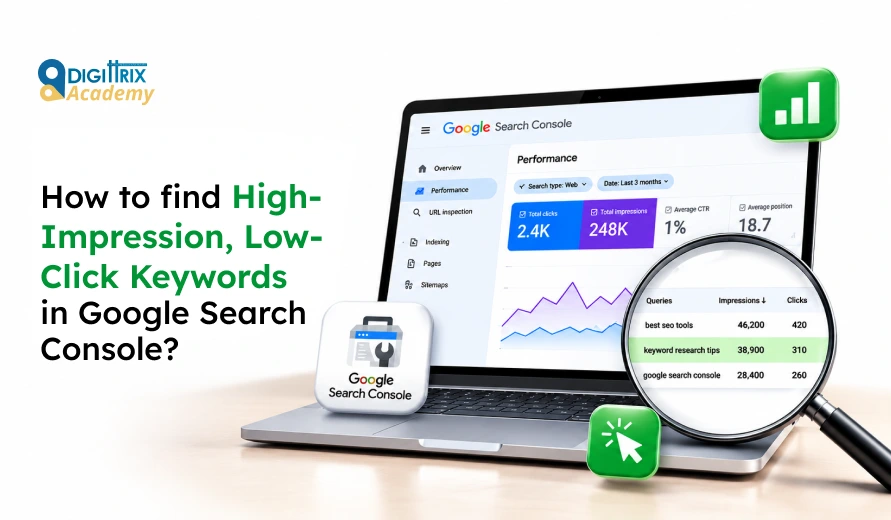
Short answer: To see how to use Google Search Console for SEO on this task, open the Performance report, set a three-month date range, turn on all four metrics, and open the Queries tab. Sort by impressions, remove branded queries, and look for rows where the click-through rate (CTR) is far below your site average. Export the data to a spreadsheet to filter these rows more exactly. These are your high-impression, low-click keywords, and most of them can be fixed with a better title, a better description, or a small content update.
What Are High-Impression, Low-Click Keywords?
An impression is counted when your page appears in a search result for a person. A click is counted when that person opens your page. A high-impression, low-click keyword is a search term for which your page appears many times, but few people choose it.
For example, a query with 8,000 impressions and 40 clicks has a CTR of 0.5%. If your other pages earn 3% in similar positions, that query is losing visits you could have earned.
These keywords matter because the hard part is already done. Google already shows your page for the search. You do not need to build a new page or a new link profile. You need to give searchers a better reason to click. Knowing how to use Google Search Console for SEO at this level takes just a few clicks and one spreadsheet.
Looking to learn digital marketing without affecting your weekday schedule? Check Digittrix Academy's guide to weekend digital marketing classes in Himachal Pradesh to explore class timings, practical projects, and flexible learning options!
Why These Keywords Are Worth Your Time
- The ranking is already there. Fixing a title is faster than writing a new article.
- Small changes can bring a large result. Moving a CTR from 0.5% to 1.5% on a term with thousands of impressions triples the visits from it.
- They show what searchers expect. A low CTR often means your result does not match the search intent.
- They help you plan content. Some queries show topics where you appear but do not fully answer the question. This makes them a useful input for Google Search Console keyword research.
How to Use Google Search Console for SEO: What You Need Before You Start
- Access to Search Console. You need at least restricted-user access to the property.
- Enough data. Use a period of at least three months. A single week has too few clicks to show a pattern.
- A spreadsheet. Google Sheets or Excel is enough.
- Your site average CTR. You will compare each keyword against it, so note it first.
How to Use Google Search Console for SEO: Open the Performance Report
Log in to Google Search Console, select your property, then click Performance in the left menu, followed by Search results. The Google Search Console performance report shows total clicks, total impressions, average CTR, and average position for your site.
At the top, click the metric boxes to activate all four: Total clicks, Total impressions, Average CTR, and Average position. By default, only clicks and impressions are available, and you need CTR and position for this task.
Step 2: Set a Useful Date Range
Click Date and choose Last 3 months. For seasonal businesses such as travel, weddings, or tax services, compare the same months from the last year because impressions rise and fall with the season.
Use the Compare option to compare this period with the earlier one. A keyword whose impressions grew while clicks stayed flat often indicates a ranking gain without a corresponding CTR gain. This type of keyword performance analysis shows which terms need attention first.
Step 3: Open the Queries Tab for Google Search Console Keyword Research and Sort by Impressions
Scroll below the chart. The Queries tab is selected by default. Click the Impressions column header to sort the largest numbers first.
Now, read down the list and look at the CTR column. Note any query with a CTR much lower than your site average. These are your low-CTR keywords. Do not stop at the first page of rows. Scroll further or export the data, because many useful terms appear between ranks 50 and 500 in this list.
Step 4: Remove Branded Queries
Branded searches, such as your company name, usually have a high CTR because the person already knows you. They can hide the real problem in the non-branded list.
Google has added a built-in branded filter to the Performance report. It groups queries as branded or non-branded and appears under the query filter. Choose the non-branded option to see only searches that do not include your brand.
If your property does not show this filter, use a regex filter instead. Create a Query filter, open the dropdown, and select Custom to use a regular expression. Choose Doesn’t match regex and type your brand names and spelling variations separated by a vertical bar, for example digittrix|digit trix.
Google’s regex filter uses a specific syntax called RE2. It applies to the Query and Page filters, and you can stack multiple filters at the same time.
Step 5: Export the Data and Mark the Gaps
The Performance table has no filter for “impressions above a number” or “CTR below a number”. The simplest way to apply how to use Google Search Console for SEO here is to export.
- Click Export at the top right and choose Google Sheets or Download Excel.
- Open the Queries sheet. You will see these columns: Query, Clicks, Impressions, CTR, Position.
- Add a new column named “Check” and use a formula like this in row 2, then copy it down:
=IF(AND(C2>500, B2/C2<0.02, E2<=15),"Check","")
This marks queries with more than 500 impressions, a CTR below 2%, and an average position of 15 or better. These numbers are only a starting point. A small site might use 100 impressions, while a large site might use 2,000. Adjust them until you get a list you can finish in one week, around 20 to 50 rows.
Then sort by the “Check” column and by impressions to see the highest-value rows first.
Step 6: Use Keyword Performance Analysis to Check Position Before You Judge the CTR
Position changes how you read a low CTR.
|
Average position |
What a low CTR usually means |
First action |
|
1 to 3 |
Title or description is weak, or the result is pushed down by features above it |
Rewrite the title and description, add a clear benefit |
|
4 to 10 |
Competitors have stronger titles, or a feature takes attention |
Test a new title, add specific details |
|
11 to 20 |
Few people reach this page of results |
Improve the content to move up before changing the title |
|
Over 20 |
Very few clicks are expected |
Treat as a ranking task, not a CTR task |
A low CTR at position 18 is normal. A low CTR at position 2 is a real problem. First, focus on high-impression keywords in positions 1 to 10, because the title and snippet matter most there.
Step 7: Find the Page Behind Each Query
Click a query in the Performance report to filter by it, then open the Pages tab. You will see which of your URLs appears in that search.
Look for these cases:
- Two or more pages show for the same query. This can split clicks and confuse Google. Decide which page should own the topic, then add internal links to it.
- The wrong page shows. A blog post may appear where a service page should, or the other way round. Check whether the page matches what the searcher wants.
- The page is a good match, but the snippet is weak. This is the easiest fix.
Step 8: Look at the Real Search Result
Search for the keyword yourself using a private window and the same country and device as your visitors. In Search Console, you can filter by country and device to see where the problem lies. A query may perform well on desktop but poorly on mobile.
Check what appears above and around your listing:
- Ads, a map pack, shopping results, or video results
- A featured snippet or an AI-generated answer that already covers the question
- “People also ask” boxes
- Competitor titles with numbers, years, prices, or clear promises
If the search page already fully answers the question, some low clicks cannot be fixed with a title change. In that case, aim to be the source Google quotes, or add information a short answer cannot include, such as a template, a calculator, or a step-by-step guide.
Common Reasons for Low CTR Keywords
- The title does not match the search. The searcher wanted a price and your title talks about features.
- The meta description is missing, cut off, or copied from another page. Google may then write its own text, and it may not be a good one.
- The title is too long. Long titles get cut off, and the key part may disappear.
- A search feature takes the click. Maps, snippets, ads, and answer boxes can reduce clicks to organic results.
- The intent does not match. Your page is an article, but people want a product page, or the opposite.
- The impressions come from irrelevant terms. Some queries are only loosely related to your page, and a low CTR is expected.
- Impressions rose for a short time. A news event or a seasonal peak can inflate the number without a lasting pattern.
How to Fix High-Impression, Low-Click Keywords With Organic Click-Through Rate Optimization
Rewrite the title tag. Put the main keyword near the start. Add one clear reason to click, such as a year, a number, a price range, or a result. Keep it short enough to avoid cut-off, around 50 to 60 characters in most cases.
Rewrite the meta description. Answer the search in one or two sentences, then add a reason to visit. Write for a person, not for a keyword list.
Match the intent. If most of the weak queries are questions, add a short direct answer near the top of the page and use the question as a heading.
Update the content. If you appear at position 11 to 20, improve depth, add missing sections, and refresh old facts.
Add structured data where it applies. Product, review, and other markup can change how a result looks, but only when the content on the page supports it. Do not add markup for content that visitors cannot see.
Improve internal links. Link to the page from related pages with descriptive anchor text.
Fix duplicate targeting. If two pages compete for the same term, merge them, or make the purpose of each page clearly different.
How to Prioritise High-Impression Keywords
Not every row deserves the same effort. Score each keyword with three simple questions:
|
Question |
Higher priority if... |
|
How many impressions does it have? |
Impressions are high compared with your other pages |
|
How close is the position to the top? |
Position is between 1 and 10 |
|
How valuable is the page? |
The page leads to sales, calls, or sign-ups |
Start with pages that answer “yes” to all three. A service page with 3,000 impressions at position 4 deserves attention before a blog post with 5,000 impressions at position 30.
How to Use Google Search Console for SEO to Check Whether Your Changes Worked
- Record the starting numbers. Save the clicks, impressions, CTR, and position of each query before you change anything.
- Add an annotation. Right-click on a Performance chart to add an annotation, so you can see the date of each edit later.
- Wait at least two to four weeks. Search Console data needs time, and Google needs time to recrawl and show the new title.
- Compare the same length of time. Use the Compare option to see the new period against the period before the edit.
- Change one thing at a time on key pages. If you change the title, description, and content together, you will not know which change helped.
Google may rewrite titles and descriptions in results, so a good edit does not always show exactly as written. If the new title does not appear, check the live result and adjust the text so it better matches what the page covers.
Mistakes to Avoid
- Judging a query on too little data. A keyword with 30 impressions and 0 clicks proves nothing.
- Ignoring position. A low CTR on page two is not a title problem.
- Mixing branded and non-branded queries. Branded terms can hide weak results in the rest of the data.
- Chasing a perfect CTR. Use your own site average as the benchmark in organic click-through rate optimization, because CTR varies by industry, device, and search type.
- Writing misleading titles. A high CTR with a quick exit helps nobody. The title must match what the page delivers.
- Changing many pages at once. You will not be able to tell what worked.
Final Words
How to use Google Search Console for SEO boils down to a simple routine: open the Performance report, identify queries with many impressions but few clicks, check their position, and fix the title, description, or content. Track each change over several weeks, and repeat the process every month so the next list of weak keywords is always ready.
Planning to pursue digital marketing training in Himachal Pradesh? Check Digittrix Academy's guide to digital marketing courses in Himachal Pradesh to understand the syllabus, course fees, and placement opportunities before choosing your training program!
Want to Start Your SEO Career With Guidance?
Search Console provides real data from live websites, so it helps to practice with feedback from someone who has worked on client accounts. Digittrix Academy offers hands-on training where you work on tasks such as reading the Performance report, identifying keywords with low click-through rates, rewriting titles and descriptions, checking pages and positions, and tracking changes over time. If you want to build these skills with a mentor and get ready for your first SEO role, send your questions to tanvi@digittrix.com. The Digittrix Academy team will share course details and batch information.
About the author
Co-Founder: Vandana Abrol
An enthusiastic developer and skilled business management expert with over a decade of experience in the field.
Categories
Digital MarketingTable of Contents
- What Are High-Impression, Low-Click Keywords?
- Why These Keywords Are Worth Your Time
- How to Use Google Search Console for SEO: What You Need Before You Start
- How to Use Google Search Console for SEO: Open the Performance Report
- Step 2: Set a Useful Date Range
- Step 3: Open the Queries Tab for Google Search Console Keyword Research and Sort by Impressions
- Step 4: Remove Branded Queries
- Step 5: Export the Data and Mark the Gaps
- Step 6: Use Keyword Performance Analysis to Check Position Before You Judge the CTR
- Step 7: Find the Page Behind Each Query
- Step 8: Look at the Real Search Result
- Common Reasons for Low CTR Keywords
- How to Fix High-Impression, Low-Click Keywords With Organic Click-Through Rate Optimization
- How to Prioritise High-Impression Keywords
- How to Use Google Search Console for SEO to Check Whether Your Changes Worked
- Want to Start Your SEO Career With Guidance?